Use a fullscreen focus timer at your desk
Put a large, readable countdown on your desk screen. The free browser timer has a Desk view for focus and rest, with the same simple controls.
Open the free timerSelect Desk view to enlarge the countdown.
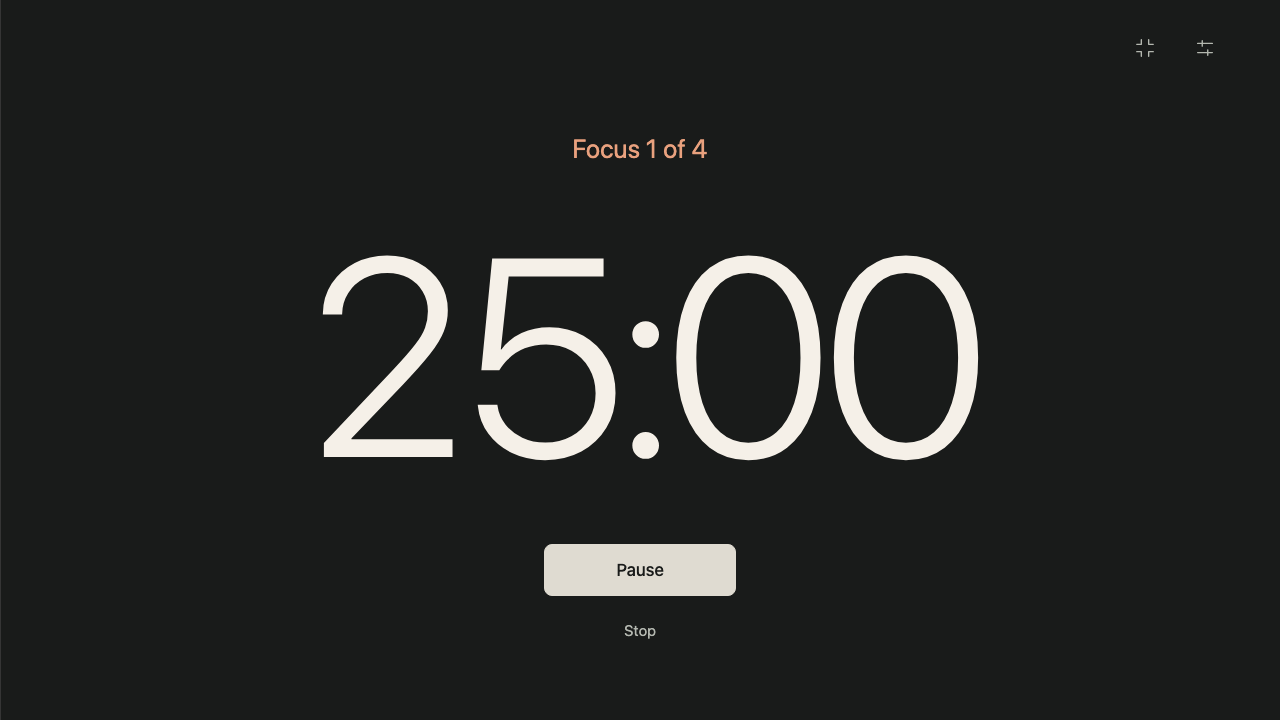
Open the fullscreen focus timer
- Open the free timer. Use Settings if you want different focus and rest durations.
- Select Desk view in the top toolbar. The timer requests fullscreen from your browser.
- Select Start focus when you are ready. If a timer is already running, entering Desk view keeps it going.
To return to the smaller view, select the Desk view control again. On a keyboard, Escape also leaves fullscreen or the enlarged in-page view. Close Settings first if it is open.
Desk view does not require charging. This guide describes the browser timer; it does not change your device’s lock screen or charging display.
Keep the desk timer visible
In Settings, enable Keep the screen awake in desk view, then select Save settings. Keep the timer tab visible.
This option depends on browser support and device settings. Your device can refuse or release the request, so it is not an always-on guarantee. The request applies while a focus or rest countdown is running and the page is visible, including outside Desk view. Pausing or hiding the page releases it.
If the browser behaves differently
- The browser toolbar is still visible
- If fullscreen is unavailable or denied, the timer can still use its enlarged in-page layout. Select the Desk view control again to leave it.
- The screen goes dark
- Check that the screen-awake option is saved and the timer tab is visible. If Settings reports that keeping the screen awake is unsupported or unavailable, use your device’s display settings if appropriate.
- An alert arrives late
- Completion alerts are optional and require browser permission. Suspended tabs may delay them, and closed pages cannot send them. Return to the timer to see the correct phase.
The same quiet rhythm
Rest starts automatically when focus ends. Every fourth completed focus gets a long rest; the next focus always waits for your tap. Desk view changes the presentation, not the cycle.
No account is needed. Your active timer and preferences stay on this device, with no ads, analytics or session history in the timer. Offline use needs one successful online load and retained browser cache.
Make room for one thing.
Open the free timerSelect Desk view to enlarge the countdown.
Prefer an installed app? Compare the free timer and native apps.